Every online store runs small pieces of code called pixels and tags. They tell Google Analytics who visited, tell Meta and TikTok which ads led to a sale, and help you build audiences for retargeting. When one of them breaks, your reports go quiet and your ads optimise on bad data — often without anyone noticing for weeks.
This guide shows four ways to check which pixels and tags a website uses, from a one-click check to a deeper look in Chrome's developer tools. They work on your own store and on any public website.
Why check a site's pixels and tags?
- Confirm your own setup works. After a theme change, an app install or a new checkout, tags are easy to lose.
- Find duplicates. The same pixel installed twice — once by a plugin and once by hand — counts every purchase twice and makes ads look better than they are.
- Check an agency's or freelancer's work. See for yourself that what was promised is actually on the page.
- Learn from other stores. Seeing which analytics and ad platforms a successful store uses tells you where it invests.
Method 1: Use a one-click detector (fastest)
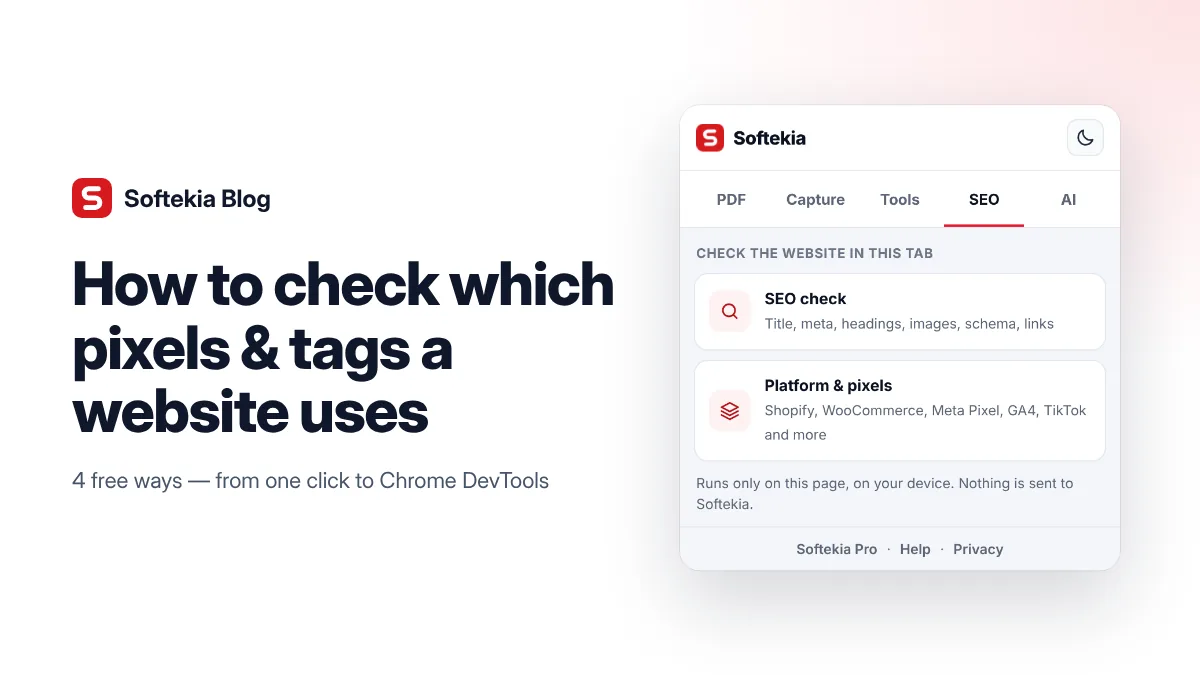
A browser extension can read the page and list the platform and the tracking tags it finds. The free Softekia Chrome extension does this in its SEO tab:
- Open the website you want to check.
- Click the Softekia icon in the toolbar and open the SEO tab.
- Choose Platform & pixels. You see the store platform and the analytics and ad tags found on the page.
- Click Copy report if you want to send it to your team.
The check runs inside your browser, so nothing about the page is sent anywhere.
Method 2: Use each platform's own helper
The big ad platforms publish free helpers that show their own tags in more detail, including the events each tag sends:
- Meta Pixel Helper — a Chrome extension from Meta that shows Meta Pixel IDs and events such as PageView, AddToCart and Purchase.
- Google Tag Assistant (tagassistant.google.com) — connects to a page and shows Google tags, Google Analytics 4 and Google Tag Manager containers, with every event they fire.
- TikTok Pixel Helper — a Chrome extension that does the same for TikTok's pixel.
These are the best tools when you need to debug one platform. A detector like Method 1 is quicker when you just want the full list.
Method 3: Search the page source
No extension needed:
- Open the page, right-click and choose View page source (or press Ctrl+U, Cmd+Option+U on a Mac).
- Press Ctrl+F and search for these common markers:
GTM-— a Google Tag Manager containerG-followed by letters and numbers — a Google Analytics 4 measurement IDfbq(orconnect.facebook.net— the Meta Pixelanalytics.tiktok.comorttq.— the TikTok pixelclarity.ms— Microsoft Clarity
The limit: many tags are added later by Google Tag Manager or by an app, so they never appear in the page source. If you find a GTM- container but nothing else, the other tags are probably inside it.
Method 4: Watch the network requests (most accurate)
This shows what the page actually sends, not just what is written in the code:
- Open the page and press F12 (or right-click and choose Inspect), then open the Network tab.
- Reload the page.
- Type a filter such as
facebook,collect(Google Analytics),tiktokorclarityin the filter box. - Scroll the page and click a button, then watch for new requests.
If a request appears, the tag is installed and sending data. If nothing appears, the tag is missing, blocked by an ad blocker, or waiting for something before it loads.
Why a pixel might not show up
- It waits for consent or interaction. Many sites load tags only after the cookie banner is accepted, or after the first scroll or click, to keep the page fast. Accept the banner and scroll before you decide a tag is missing.
- An ad blocker hides it. Test in a window with extensions turned off.
- It runs on the server. Server-side tracking, such as the Meta Conversions API, sends events from the store's server, so the browser never sees them.
- It fires only on some pages. Purchase events usually fire only on the order confirmation page.
Quick checklist for your own store
- ☐ Google Analytics 4 records a page view on the home page
- ☐ Each ad platform you pay for has exactly one pixel on the page — no duplicates
- ☐ Add-to-cart fires when you add a product
- ☐ Purchase fires once on the order confirmation page, with the right value and currency
- ☐ Tags still work after your last theme or app change
Frequently asked questions
How do I know if a website has a Facebook (Meta) Pixel?
Use a pixel detector or Meta Pixel Helper, or open the page source and search for fbq( or connect.facebook.net. If the pixel loads through Google Tag Manager, check the Network tab for requests to facebook.com instead.
Can I see another company's pixel data?
No. You can see which tags a public page loads and the IDs in its code, but the data those tags collect belongs to that company and is visible only in its own ad and analytics accounts.
Why does my pixel show twice?
Usually because it was added in two places — for example by a store app and again in the theme or in Google Tag Manager. Remove one copy, then check again that each event fires only once.
Is it free to check a site's tags?
Yes. Every method in this guide is free, including the Softekia Chrome extension.
Check any site in one click. Get the free Softekia extension for Chrome — platform and tag detector, SEO check, PDF tools and screenshots.