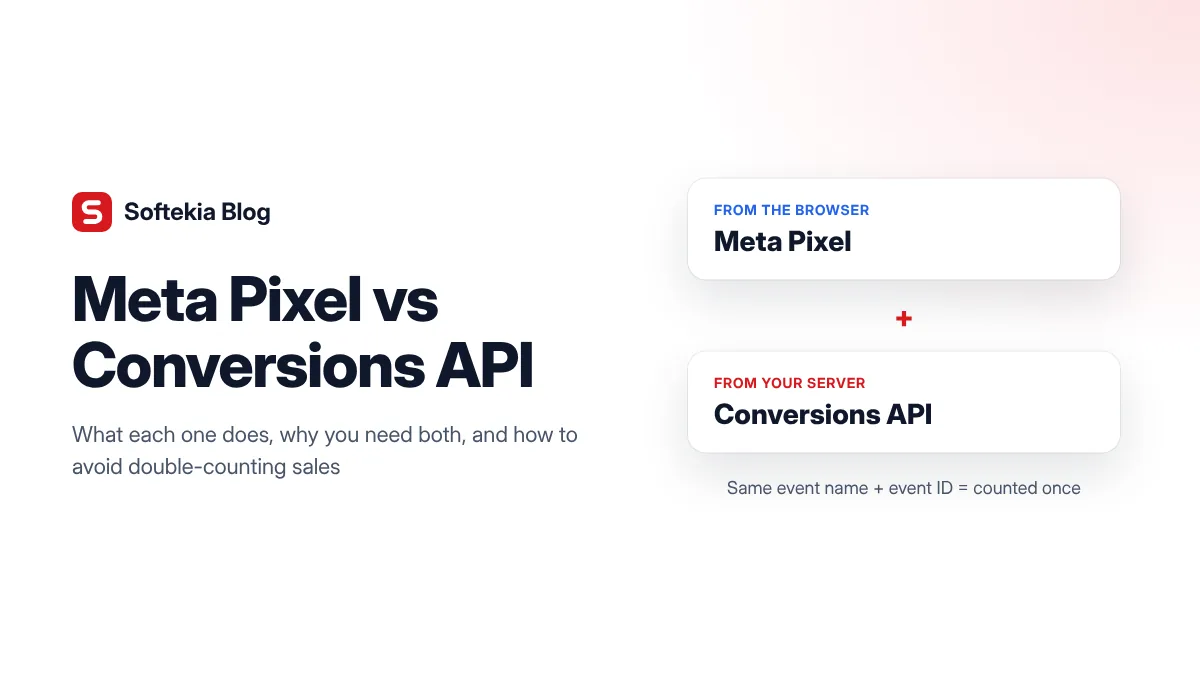
If you run Facebook or Instagram ads, Meta needs to know what happens after someone clicks: did they view a product, add it to the cart, buy? There are two ways to send that information — the Meta Pixel and the Conversions API (often shortened to CAPI). Store owners often ask which one they need.
Short answer: use both. Meta itself recommends running the Conversions API alongside the Pixel. This guide explains why, what each one does, and how to set them up without counting sales twice.
What the Meta Pixel does
The Meta Pixel is a small piece of JavaScript that runs in the shopper's browser. When the page loads or the shopper takes an action, the browser sends an event — PageView, ViewContent, AddToCart, Purchase — straight to Meta.
- Good at: quick to install, captures on-page behaviour, works with almost every store platform.
- Weak at: anything that stops the browser from sending the event. Ad blockers, browser privacy features, a shopper who closes the tab before the thank-you page loads, or a script that fails to load all mean lost events.
What the Conversions API does
The Conversions API sends the same kinds of events from your server to Meta, instead of from the shopper's browser. When an order is saved in your store, your server tells Meta about it directly.
- Good at: it is not affected by ad blockers or the browser closing, and it can send events that never happen in a browser at all — for example a COD order confirmed by phone, or a refund.
- Weak at: it needs a server-side setup — a platform integration, a plugin, a tag manager server container or custom code — and it does not see on-page behaviour the way the Pixel does.
Pixel vs Conversions API at a glance
| Meta Pixel | Conversions API | |
|---|---|---|
| Runs in | Shopper's browser | Your server |
| Blocked by ad blockers | Often | No |
| Setup | Paste a code or connect an app | Platform integration, plugin or developer |
| Offline events (phone orders, refunds) | No | Yes |
| On-page behaviour | Yes | Limited |
Why you should run both
Each method covers the other's gaps. When both send the same event, Meta keeps the one it receives and drops the duplicate — as long as you set up deduplication. The result is more complete data for reporting and for ad optimisation, which matters most for Purchase events because that is what most stores optimise for.
Deduplication: the step people get wrong
If the Pixel and the Conversions API both send a Purchase without telling Meta they are the same purchase, it can be counted twice. Your reports look better than reality and your cost per purchase looks lower than it is.
To avoid this, send each event from both sides with:
- the same event name (for example
Purchase), and - the same event ID — usually the order number or a unique ID generated once and shared with both the browser and the server.
In Events Manager, open your dataset and check that events received from both the browser and the server show as deduplicated.
How to set it up on common platforms
- Shopify: install Meta's Facebook & Instagram sales channel and choose the highest data-sharing level. This turns on the Conversions API alongside the Pixel, with deduplication handled for you.
- WooCommerce: Meta's official plugin for WooCommerce can send both Pixel and Conversions API events. Add your access token in its settings.
- Other platforms or custom stores: look for a built-in Meta integration first. If there isn't one, Meta offers the Conversions API Gateway, which you host in your own cloud account, or a developer can send events to the API directly from your order system.
Send good customer information (match quality)
Meta matches each server event to a person using the customer information you send with it — such as email, phone number, name, city and country. These values are hashed before they are sent. Events Manager gives each event an Event Match Quality score; the more useful fields you include, the better Meta can match the event to an ad click.
Only send information your privacy policy covers, and follow the consent rules that apply where your customers live.
How to check that it's working
- In Events Manager, open your dataset and look at the Overview: each event should show both Browser and Server as sources.
- Use Test events to place a test order and watch both events arrive.
- Check the Event Match Quality for Purchase and add missing customer fields if it is low.
- On the store itself, confirm the Pixel loads — see our guide on how to check which pixels and tags a website uses.
Frequently asked questions
Do I still need the Meta Pixel if I use the Conversions API?
Yes, in most cases. Meta recommends using both together, with deduplication, so each method covers what the other misses.
Is the Conversions API free?
Meta does not charge for the API itself. Costs can come from the setup — a developer's time, a paid plugin, or the cloud server if you host the Conversions API Gateway yourself.
Can I send cash-on-delivery orders confirmed by phone?
Yes. Because the Conversions API sends events from your server, it can report a purchase when the order is confirmed or delivered, even if that never happens in the shopper's browser.
Why are my purchases counted twice?
Usually because the Pixel and the Conversions API send the same purchase with different event IDs, or one of them sends no event ID. Make both use the same event name and event ID.
Want this set up for you? See server-side tracking and pixel & conversion tracking from Softekia Agency.